
How to calculate a break-even ROAS dynamically for your ads in Looker Studio
For every $1 spent on Google Ads, you make $1.25 on revenue, which maybe makes you happy... But if your product has less than 80% margin, you're actually in trouble...
We recently talked about how to properly track Shopify ROAS and LTV in Looker Studio. But we’re only comparing ad spends to revenue here. If you’re selling physical goods, these have costs as well, so you may want to chime them in to better understand the real profitability of your campaigns. So in this article, we’ll review how to calculate a break-even ROAS dynamically for your ads in Looker Studio.
Top Looker Studio connectors we love and use on a daily basis (all with free trials): PMA - Windsor - Supermetrics - Catchr - Funnel - Dataslayer. Reviews here and there.
Not sure which one to pick? Have a question? Need a pro to get a project done? Contact us on LinkedIn or by e-mail, and we’ll clear up any doubt you might have.
Looking for Looker Studio courses? We don’t have any… but you can check Udemy!
The power of parameters
Let’s assume we’re working with the Google Ads native data source (but works for any ads data source really). You’ve got campaigns on which you spend $$$ (field Cost) that in return generate $$$ (field Conv. value).
First thing people think of: let’s look at the ROAS! For $1 spent, how much do I make in revenue? This is easy, create a calculated field, formula = divide one by the other, and you’ve got your answer:
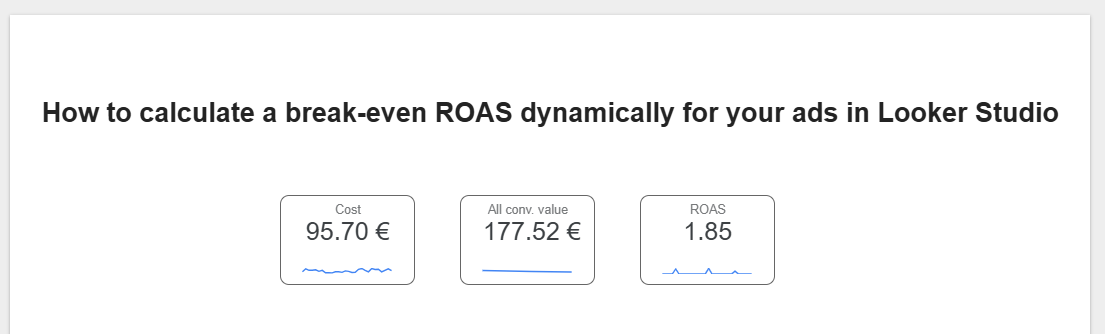
That’s cool right? Well, it just tells one part of the story. You’ve got CoGS (Cost of Goods and Services) that need to be taken into account. Unfortunately, you don’t have them in your Ads Business Manager. So what can you do here? Use parameters to chime them in!
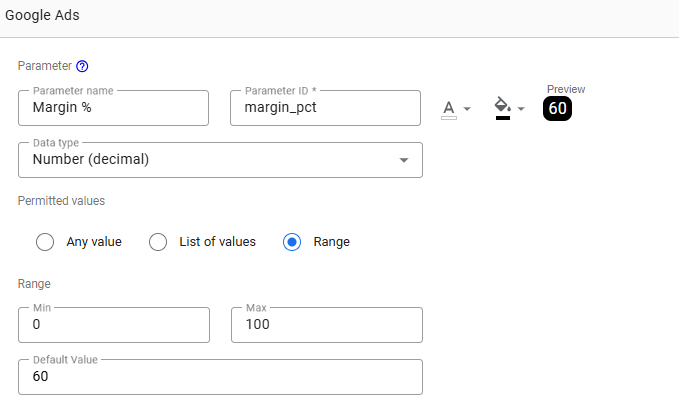
How do we do that? Edit your data source, and then add a parameter as follow:
Give it a Parameter name and a Parameter ID (Margin % & margin_pct as ID don’t like percentage sign)
Data type, set to Number (decimal)
Eventually, Permitted value should be in a Range between 0 & 100, with a Default value of 60% (yes we know, we should increase prices a bit ^^)
Optional: if you’re to make your margin % appear in a text box as dynamic text, you can edit the font and the background color
And you end up with something like:
Save it, and let’s rock’n’roll!
Create a new formula, and you’re good to go
It’s almost over. Build a new KPI, and update your ROAS formula from:
Conv. Value / Cost
to:
(Conv. Value * margin_pct/100) / Cost
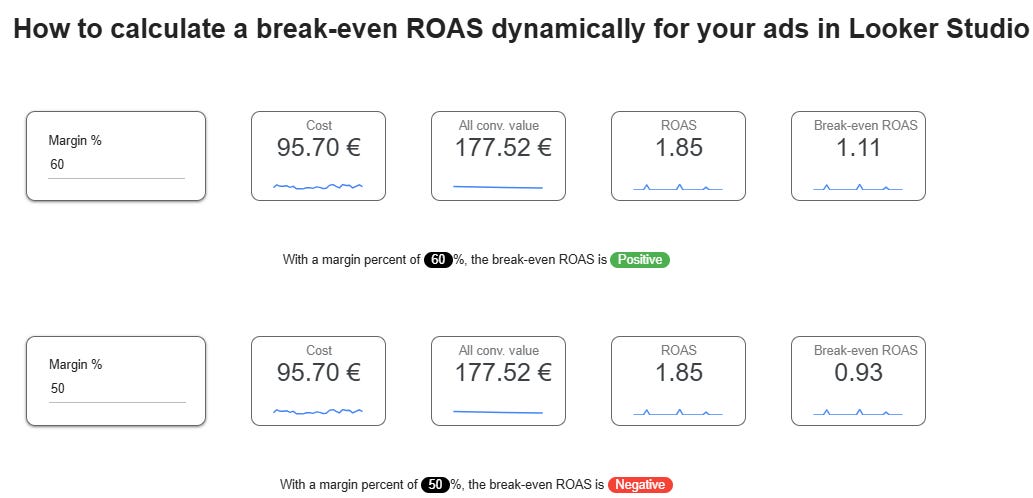
And tadam, you’ve got your break-even ROAS. Want to get it to the next level? Add an input box where your users can set the margin % and see the impact live, then add dynamic text with a conditionally formatted variable to shed more details, and you can end up with some nice visuals (these have been done in 5 minutes, pretty sure you can do way better!):
And that’s it for now! In this article, we’ve reviewed how to calculate a break-even ROAS dynamically for your ads in Looker Studio.
PROBLEM SOLVED
Top Looker Studio connectors we love and use on a daily basis (all with free trials): PMA - Windsor - Supermetrics - Catchr - Funnel - Dataslayer. Reviews here and there.
Not sure which one to pick? Have a question? Need a pro to get a project done? Contact us on LinkedIn or by e-mail, and we’ll clear up any doubt you might have.
Looking for Looker Studio courses? We don’t have any… but you can check Udemy!
Communicate and browse privately. Check Proton Mail and Proton VPN
Website hosted by Tropical Server