
How to properly track Shopify ROAS and LTV in Looker Studio
Want to calculate your Shopify ROAS and LTV, but not sure how to? No worries, we've got you covered, in this article we show you how to properly do it with Looker Studio
There are a couple of things in action here: first, with all the DGPR, ad blockers and private navigation browsers, it’s becoming harder and harder to track where your visitors come from. Second, your Meta Ads / Google Ads / TikTok Ads… business managers tend to be overly optimistic when it comes to attributing to themselves sales and revenue (makes sense, would you spend more with a ROAS of 2, or with a ROAS of 3?!). Knowing these, in this article, we’ll show you how to properly track your Shopify ROAS in Looker Studio. And as we’re there, we’ll look at the LTV as well.
Top Looker Studio connectors we love and use on a daily basis (all with free trials): PMA - Windsor - Supermetrics - Catchr - Funnel - Dataslayer. Reviews here and there.
Not sure which one to pick? Have a question? Need a pro to get a project done? Contact us on LinkedIn or by e-mail, and we’ll clear up any doubt you might have.
Looking for Looker Studio courses? We don’t have any… but you can check Udemy!
For ROAS calculation, you can pick any Looker Studio connector that has both Shopify and Ads
First and foremost, you must use a Looker Studio connector to be able to send both Shopify and Business Manager data (Google Ads, Meta Ads, TikTok Ads, …) to Looker Studio. We’ve outlined above our list of top picks, don’t hesitate to check our reviews to find the one that fits both your needs and your budget. Some with send data with one data source, and some in several, so you may have to blend data. Check our other articles on how to blend.
Blend Shopify with Ads, decide if you limit to Paid Search & Paid Social, and you’re good to go
Once you’ve chosen your connector and connected your data sources to your newly created Looker Studio report comes the big question: how do we properly calculate ROAS, ie Return on Ads Spend?
As mentionned in the introduction, attribution is becoming very hard these day. Sure, you can install an Addingwell style plug-in to ensure server-side tracking and improve visitors recognition, but it still doesn’t give you the right story. Why?
Let’s assume you spend on Google Ads, Meta Ads & TikTok Ads. Each business manager will track visitors, lose some in the process, and compute an estimated ROAS. On the other side, Shopify will also track visitors coming from each of these and calculate their revenue.
But in reality, we can’t never be 100% sure what did drive the sale. Maybe someone saw an ad on both Google and Meta: how do you attribute it? Maybe someone saw an ad on Meta, didn’t click on it, and the next day, found your website through Search to buy directly. Maybe s/he did click, but Shopify doesn’t recognize it comes from Meta and attributes it to Direct, …
At the end of the day, the decision of attribution comes down to you, and your knowledge of your business. So two things you can do here:
Blend your Shopify data source with your ads data sources, and calculate your ROAS by doing Total Sales divided by Marketing Spent without filtering anything. It will give you a full picture, knowing some direct and search sales would have happened anyways, but some may indeed be driven by your marketing pressure. Best when not sure about tracking and cross-channel effects
Here you can even go one step further and calculate your TACoS (Total Advertising Cost of Sales), which is the other way round, Marketing Spent divided by Total Sales, which tells you how much you rely on Paid to drive business
OR, you consider your tracking is quite good. So you blend your Shopify data source filtering on Paid Search & Paid Social with your ads data sources, and linking Shopify Google to Google Ads, Shopify Meta to Meta, …. Here, you assume the revenue is 100% linked to the channel it comes from. Do this if you’re confident about your tracking and cross-channel effects
In both cases, you’re good to go, you can start looking at your ROAS, but most importantly, start seeing how it moves over time, when you spend more, spend less, when you do more product targeted ads, UGC ads, … ROAS is just a number at the end of the day, what you want to track is how it moves when you do stuff!
One nice dataviz: Take each month as a data point, and do a scatter chart Marketing Spent Vs ROAS: when you spend more on a given month, does it decrease ROAS or not? Is there a sweet spot that maximize ROAS under a budget?
As we’re in that loophole, could we look at LTV as well?!
LTV requires individual customer tracking, hence we’ll use a database integrator and some SQL skills for this
Unfortunately, if you want to properly look at LTV, direct to Looker Studio connectors are of no help. They provide aggregated data, but can’t look at individuals one by one.
This is where you’ll need some database integrator. Here’s how to do it:
Pick a database integrator like Fivetran, Stitchdata, Airbyte … to send your Shopify and Ads data to a database (we recommend BigQuery as it integrates well with Looker Studio, but any will do)
Here, you will get raw data with many tables (customer table, sales table, spends by day table, …). This is where the magic happens: you need to write SQL queries to attribute a customer to its channel and to a cohort, and track how s/he spend over time (contact us if you need help here)
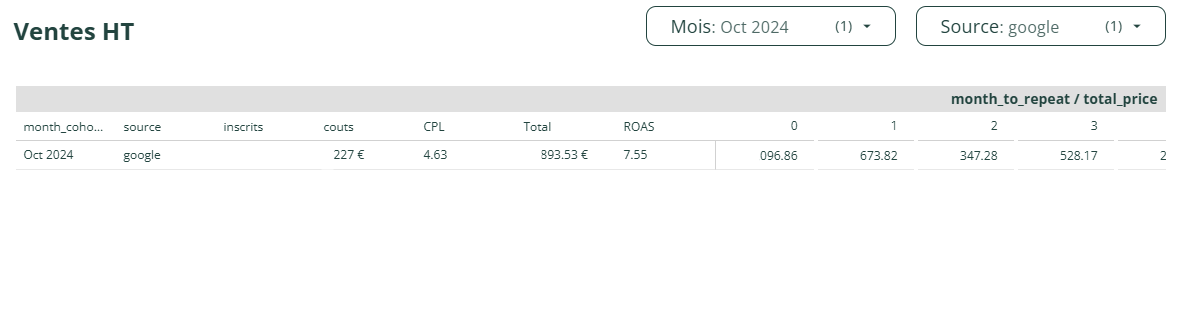
Eventually, you’ll sent the result of your query to Looker Studio, and you’ll be able to look at LTV of cohorts by channel and calculate very precisely how your $Xk spent on Google Ads in October 2024 translate into revenue in October 2024, but also November 2024, December 2024… Hence go one step and calculate your ROAS using LTV and not only first purchase (some data on graph hidden, obviously…):
In this article, we’ve reviewed how to properly calculate Shopify ROAS and LTV in Looker Studio. Hope it helps. And as usual, don’t hesitate to contact us if needed, we’ll be happy to help!
PROBLEM SOLVED
Top Looker Studio connectors we love and use on a daily basis (all with free trials): PMA - Windsor - Supermetrics - Catchr - Funnel - Dataslayer. Reviews here and there.
Not sure which one to pick? Have a question? Need a pro to get a project done? Contact us on LinkedIn or by e-mail, and we’ll clear up any doubt you might have.
Looking for Looker Studio courses? We don’t have any… but you can check Udemy!
Communicate and browse privately. Check Proton Mail and Proton VPN
Website hosted by Tropical Server